How do I reset my OpenVPN password in DuploCloud?
Last updated: February 13, 2026
Context
If you need to access OpenVPN through DuploCloud, you may need to reset your VPN password. This process involves resetting the password through the administrator panel and then retrieving your new credentials from your user profile.
Answer
To reset your OpenVPN password, follow these steps:
Step 1: Reset VPN Password
Navigate to Administrators → Users
Search for and edit your user account
Click on the VPN tab in your user edit section
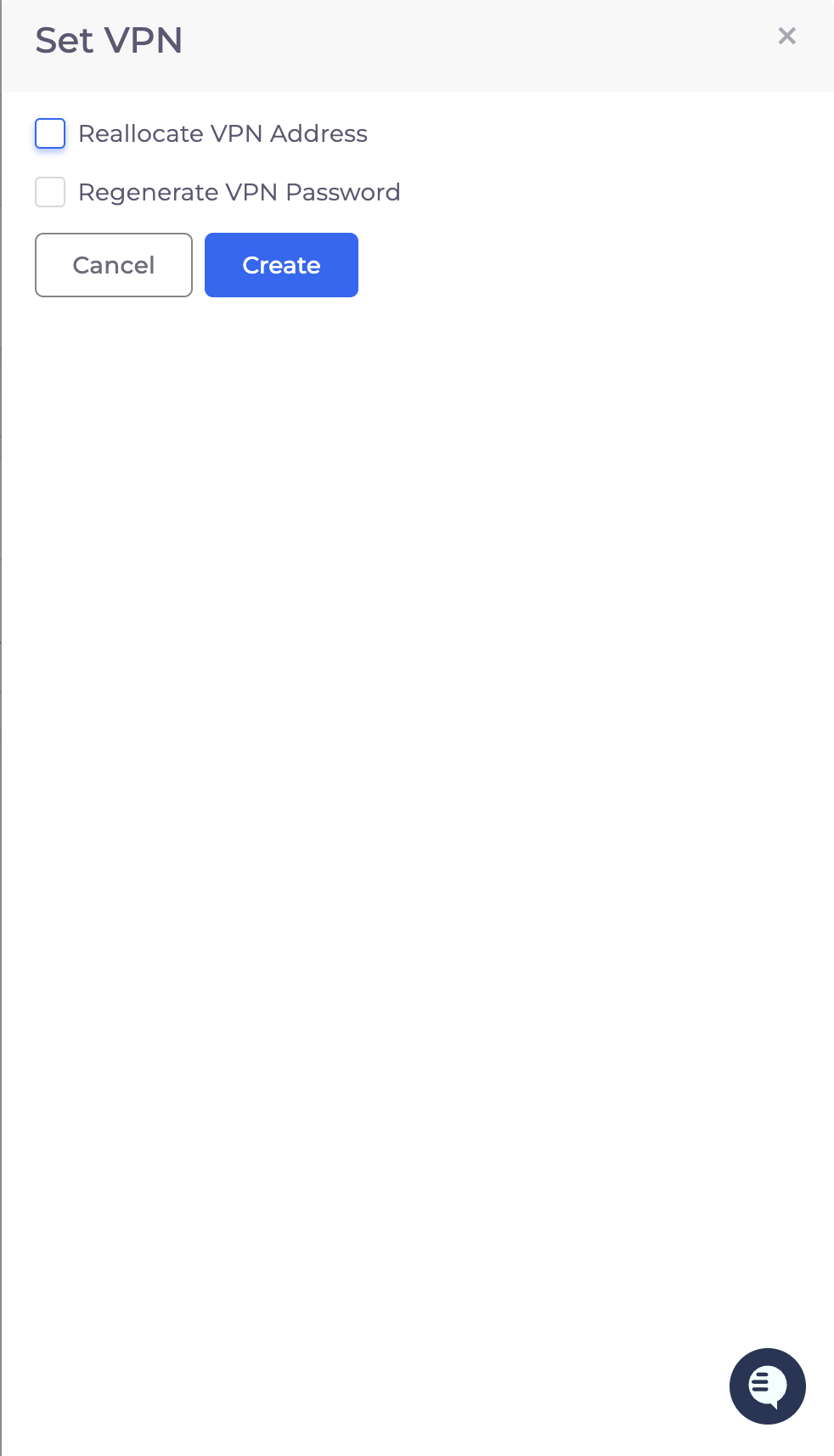
Select Reset VPN
Choose Regenerate VPN Password and click Create
Step 2: Retrieve Your New Credentials
After completing the reset workflow, retrieve your new VPN credentials from your profile:
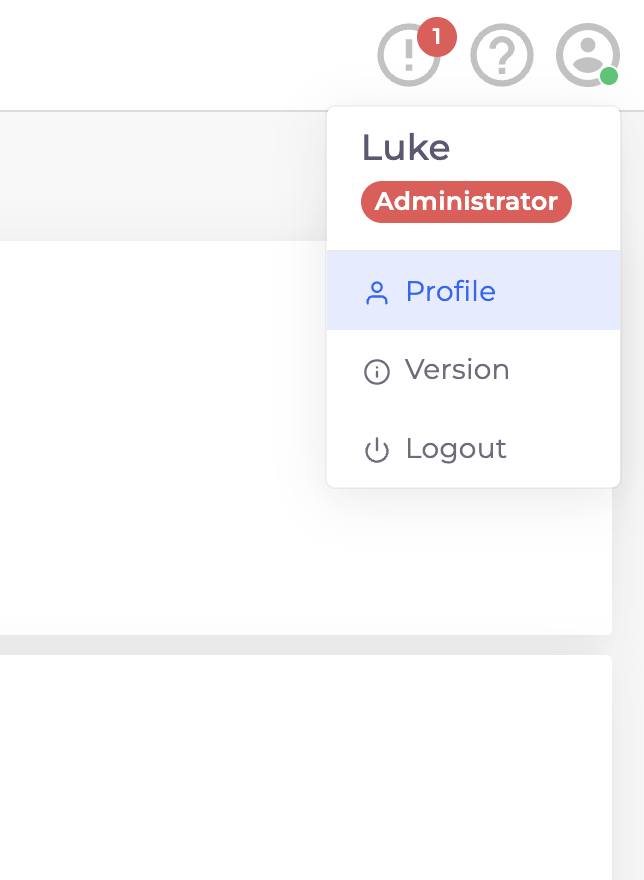
Click on the user icon in the top-right corner of the portal
Select Profile from the dropdown menu
In your profile page, locate the VPN Details section
Your VPN username, password, and URL will be displayed here
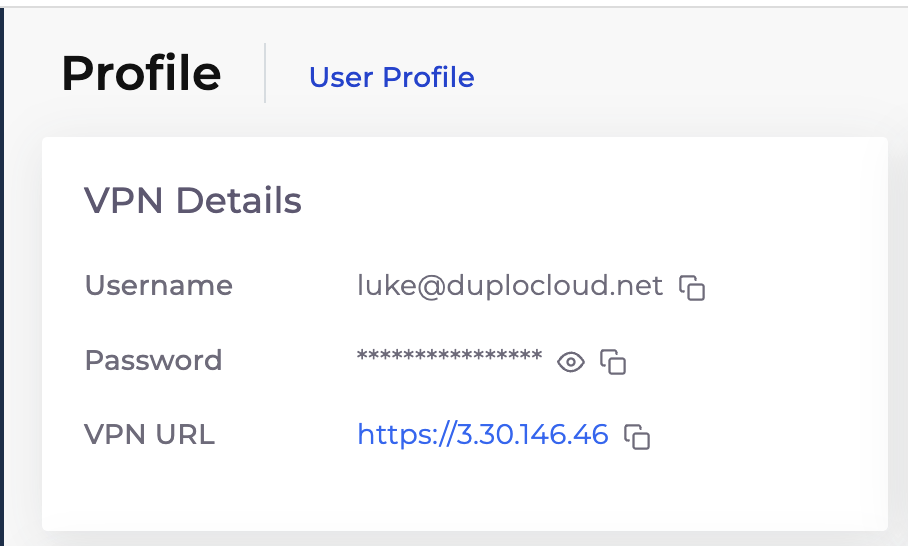
You should receive an email confirmation after completing the reset workflow. Your new VPN credentials will be available in the VPN Details section of your profile page.